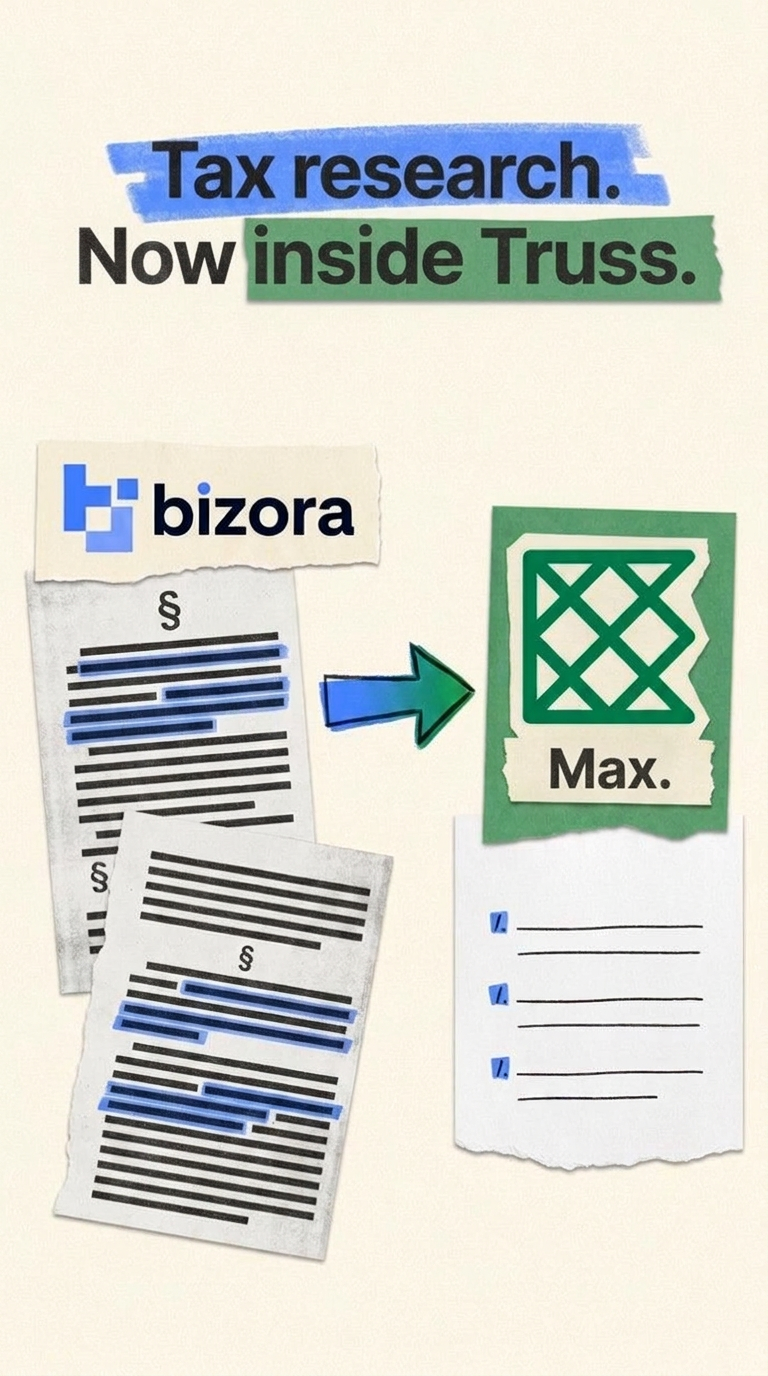
The fastest way to get Bizora into Claude or ChatGPT is the official listing: no config file, no API key, no install. Search for Bizora in the Claude Connector Directory or the ChatGPT App Directory, connect, and start asking tax and audit questions with citations attached.
Under the hood, that connector runs on the Model Context Protocol (MCP), which is why Bizora also works with any other MCP-compatible tool, including Cursor, Kiro, Claude Code, and other agent frameworks that speak MCP. If that's you, jump straight to the "Using Bizora With Other MCP Tools" section below. For pricing and a full breakdown of every connection method, see the Bizora API page.
No downloads, no installs, no API key to paste anywhere. This is what we recommend for most people.
In Claude
In ChatGPT
That's the whole setup, with no mcpServers block and no bearer token to manage.
If you're using Bizora inside Claude, add Bizora Skills on top of the connector. They're ready-to-use Claude Skills built specifically for tax and accounting work: turn a client question or a research result into a drafted memo or email in one line, instead of copy-pasting Bizora's answer into a blank doc yourself.
Get them from the Bizora Skills page, which has setup instructions, a walkthrough video, and downloads for every skill, so you can install one at a time or all of them at once.
Cursor, Kiro, and other MCP-compatible agent tools connect through MCP directly.
Keys start with the sk_ prefix and must be active in Bizora billing. Keep them in headers only. Never put a key in a URL query string, because query strings get logged.
There are two ways in, and which one you use depends on your client rather than anything you configure on Bizora's side.
Path A, remote URL with OAuth. If your assistant lets you add a remote MCP server by pasting a URL, use this. Bizora publishes its protected resource metadata at https://mcp.api-bizora.ai/.well-known/oauth-protected-resource, and an OAuth capable client will discover it and walk you through sign in. You do not need client IDs, secrets, or callback URLs.
Path B, config file with an API key. If your assistant uses a JSON config file, or does not support OAuth yet, pass your key as a bearer token instead.
In your assistant's connector or MCP settings, add a new server:
https://mcp.api-bizora.ai/mcp
Authorize when prompted, and that's the whole setup.
Most config based clients use the same mcpServers schema. Claude Desktop keeps it in claude_desktop_config.json; Cursor, Kiro, and Claude Code expose the same structure through their own settings panels or project files.
Open the file:
# macOS
open ~/Library/Application\ Support/Claude/claude_desktop_config.json
# or in an editor
code ~/Library/Application\ Support/Claude/claude_desktop_config.json
Add the Bizora block, replacing YOUR_API_KEY with the key from Step 1:
{
"mcpServers": {
"bizora-tax": {
"command": "npx",
"args": [
"mcp-remote",
"https://mcp.api-bizora.ai/mcp",
"--header",
"Authorization: Bearer YOUR_API_KEY"
]
}
}
}
Save, then fully quit and relaunch the app. If no tools appear, install the bridge and restart:
npm install -g mcp-remote
The /sse route still works for older clients that require HTTP plus SSE transport, but there is no reason to start there.
By default you get one tax-research tool that runs fast, focused research. That is the right setting for most practitioners. If you want something else, append a tools parameter to the URL, or send the same value as an X-Tools header.
| What you want | Value |
|---|---|
| Fast, focused research (default) | none, or tools=tax-fast-research |
| Force the deeper research workflow | tools=tax-deep-research |
| Let Bizora route each question | tools=auto |
| Route only between listed modes | tools=auto,tax-fast-research,tax-deep-research |
| Expose every public tool separately | tools=all |
So a deep research connection looks like this:
https://mcp.api-bizora.ai/mcp?tools=tax-deep-research
Two notes. URL parameters win over headers when both are present. And do not combine tools=all with tools=auto: all exposes separate tools, while auto exposes a single tool that picks its own route.
Ask a real question in your assistant:
How does Section 199A apply to a partnership?
You should see the tax research tool activate mid response, with the answer coming back from Bizora's engine rather than the model's training data. If you just want to confirm the wiring, ask whether tax research is working.
The default response is deliberately compact: the answer, plus sources.s3_file_path and sources.node_id. That is enough to identify a source, not enough to display a full citation.
When you need page labels or source text, request those fields explicitly with a field mask:
?response_format=answer,sources.sourceOrigin,sources.page_label,sources.text
Or send the same value as an X-Response-Format header. Available fields include answer, sources (with subfields such as sourceOrigin, page_label, text, and s3_file_path), steps for reasoning progress, and token counts under usage.
There is also response_format=full, which returns the entire raw payload. It is useful while building an agent and far too verbose for anyone actually reading answers.
One rule worth stating plainly: if a source field is not in the response, do not let your agent invent a citation. Build against what comes back.
Zero data retention is off by default, which keeps usage analytics, abuse monitoring, reliability, billing, and security working normally.
To turn it on, pass zdr=true as a URL parameter or send X-Zero-Data-Retention: true as a header. For the External API, pass ZeroDataRetention: true in the request body.
Before you enable it, know the tradeoffs. Prompt and response content is not retained for those requests, so some models and providers become unavailable because they do not support the mode, and abuse monitoring becomes your responsibility since Bizora has limited visibility into that traffic.
MCP is for connecting an assistant. If you are writing code against an OpenAI SDK or calling HTTP directly, use the External API instead:
https://api-bizora.ai/chat/completions
It accepts either Authorization: Bearer sk_live_xxxxx or X-Api-Key: sk_live_xxxxx, and supports both streaming and non streaming responses. Research mode is set with askMode, using tax_research_fast_research, tax_research_deep_research, or auto.
Do not mix askMode with older boolean flags like deepresearch: true. Sending both causes a validation error.
| Detail | Value |
|---|---|
| Claude Connector Directory | Search "Bizora" inside Claude → Settings → Connectors |
| ChatGPT App Directory | Search "Bizora" in the ChatGPT App Directory |
| MCP (Streamable HTTP) | https://mcp.api-bizora.ai/mcp |
| MCP (legacy SSE) | https://mcp.api-bizora.ai/sse |
| External API | https://api-bizora.ai/chat/completions |
| OAuth metadata | https://mcp.api-bizora.ai/.well-known/oauth-protected-resource |
| Auth header | Authorization: Bearer sk_live_xxxxx |
| API key prefix | sk_ |
| Default tool | tax-research |
| Get your key | platform.bizora.ai |
| Bizora Skills | bizora.ai/bizora-skills |
Ready to get started? Try Bizora free at webapp.bizora.ai.
Bizora AI turns hours of manual research into seconds, with every answer backed by primary source citations. Start your 7-day free trial. No credit card required.
Start Free TrialRelated articles